Every team that starts building constraint rules in Salesforce Advanced Configurator (part of Agentforce Revenue Management) faces the same question sooner or later:
“Should we keep using the Visual Builder, or is it time to switch to the CML Editor?”
Salesforce documentation says both tools support the same constraint types – and that is broadly fair. But when exactly one stops being practical and the other becomes necessary?
In this article we will mark this boundary on how to recognize the specific moment when your project has outgrown point-and-click – before it costs you time.
Before comparing the two, it helps to understand what they are designed for.
Visual Builder is a UI-based tool integrated into the Product Configurator setup in Salesforce. You select a product or product class, and Visual Builder generates a CML scaffold – types, attributes, relations, and cardinalities – that mirrors the bundle hierarchy defined in Product Catalog Management (PCM).
From there, you add constraint rules and preference rules through a menu-driven interface: click the “+” button, choose a rule type, configure conditions and actions through dropdowns and fields.
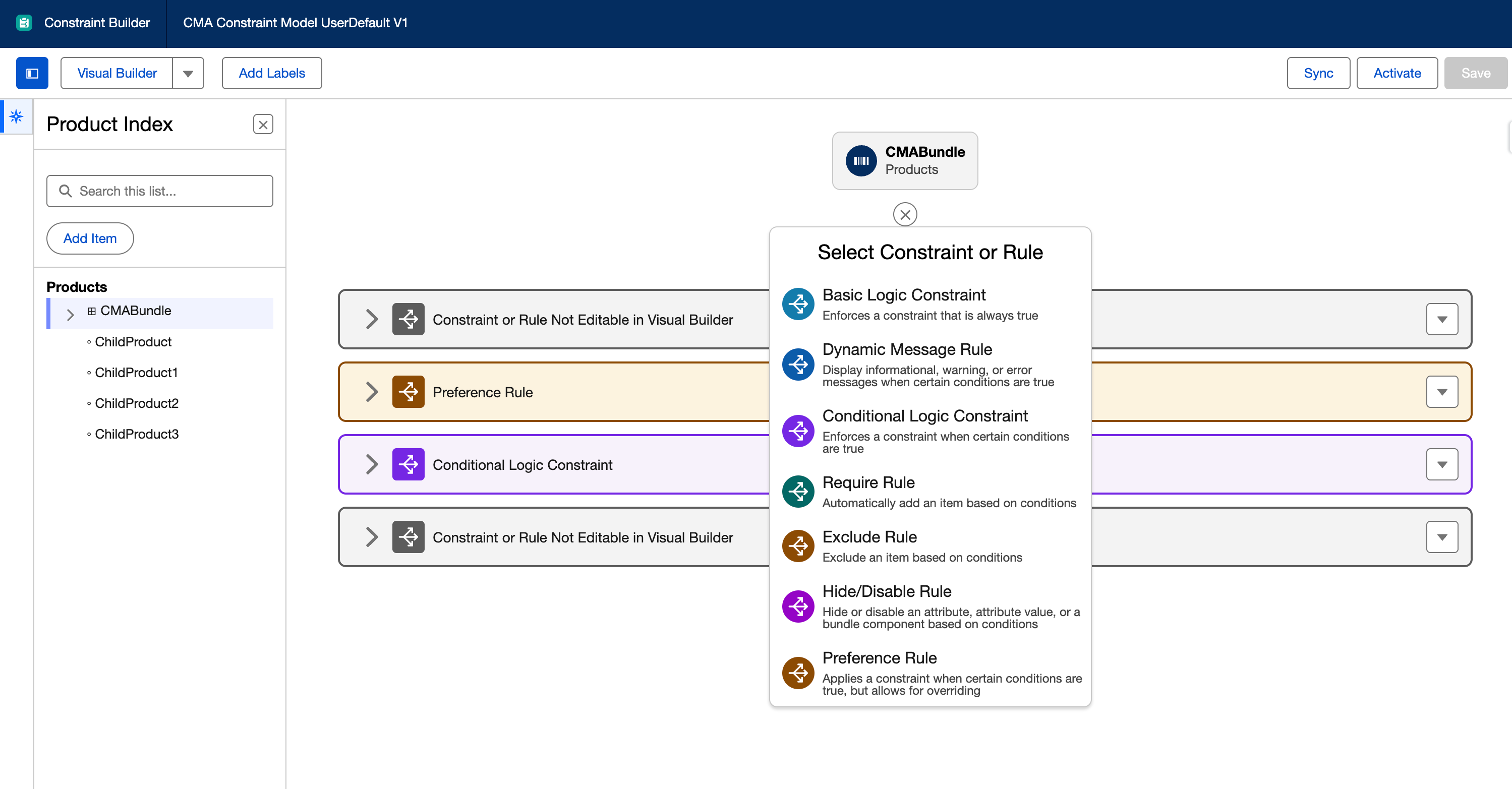
The tool validates your input as you build. If a rule is structurally invalid – a missing operand, an incompatible comparison – Visual Builder blocks the save and shows an error. This prevents a category of mistakes that would otherwise surface only after activation, which is particularly valuable for teams that are new to CML.
Behind the scenes, Visual Builder writes CML code. Every rule you configure through the UI is translated into CML syntax and stored in the constraint model. You can switch to the CML Editor at any time to see what was generated.
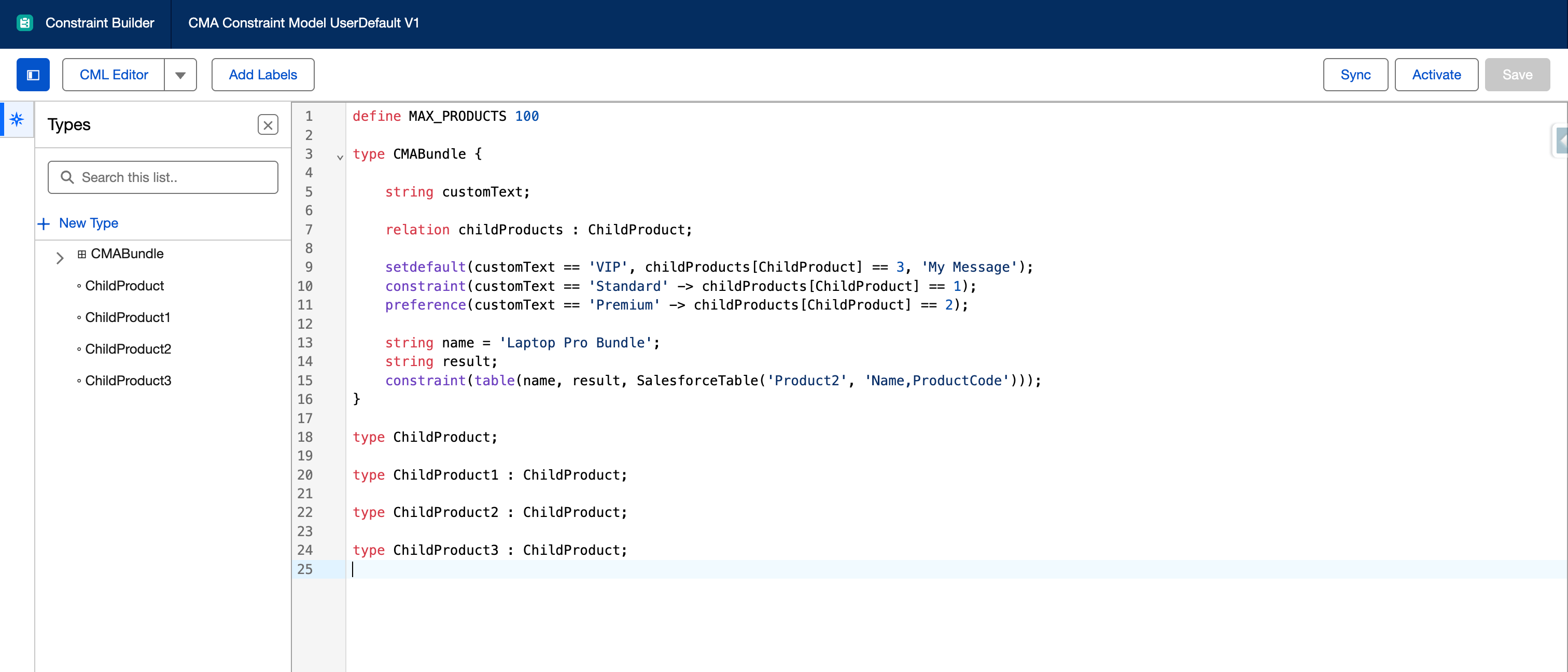
CML Editor is a text-based interface where you write CML directly. There is no visual scaffolding and no guided setup. You define types, declare variables, write constraints, and manage the entire model architecture by hand.
The tradeoff is straightforward: CML Editor requires knowledge of CML syntax and the constraint programming paradigm, but it gives you access to every CML feature the engine supports.
That includes constructs that Visual Builder cannot represent: global constants via define, default values via setdefault, table constraints via table and SalesforceTable, named constraints, conditional constraint activation, custom type hierarchies with inheritance, and fine-grained domain control.
This table captures the functional differences between the two tools in one place – useful when you are scoping a new project or deciding whether a particular requirement pushes you toward the CML Editor.
Both tools edit the same CML model, but they cover different ranges of what CML can do. The clearest way to show where one ends and the other picks up is through specific project scenarios.
Imagine a bundle with 30+ child products, each carrying its own set of attributes – a typical scenario in telecom or enterprise hardware. Setting up the CML types, relations, and attribute domains manually would take hours of repetitive work.
Visual Builder handles this in a few clicks. You select the root product in the Configurator setup, and the tool imports the entire PCM hierarchy – types for each product, relations between parent and children, attribute domains pulled from the catalog.
When this works: Large bundles with many products and attributes where the initial CML structure should mirror the PCM hierarchy. Projects in early stages where the priority is getting a working model quickly.
A retail company needs a few straightforward rules: if the customer selects a “Premium” support tier, certain accessories should be pre-selected. If a specific product variant is chosen, an incompatible option should be excluded.
Visual Builder covers this comfortably. You add a constraint or preference rule from the menu, set the condition (if attribute X equals value Y), define the action (then require/exclude/set product Z), and save. The UI validates the rule before saving, and you can see the generated CML to verify what was created.
When this works: Rules that follow a direct if-then pattern without nesting, aggregation, or dependency on external data. Teams where the person building the configuration is a Salesforce admin or business analyst rather than a developer.
Now the requirements shift: let’s say, a manufacturing organization needs to load valid product-attribute combinations from a Salesforce custom object, and several picklist domains are shared across types. On top of that, certain attributes need default values driven by business logic.
.png)
None of these are available through Visual Builder. The define keyword – used to create global constants and shared domain definitions – has no Visual Builder equivalent.
The setdefault operation, which assigns initial values to variables, is likewise absent. And table / SalesforceTable – the constructs that allow you to define valid combinations in a structured matrix or pull constraint data from Salesforce objects – require the CML Editor.
Here is a practical example. A global constant for shared picklist values:
// Global constant – only possible in CML Editor
define SupportLevels = ["Basic", "Standard", "Premium"];
type Product {
string supportLevel = SupportLevels;
}
And a SalesforceTable loading valid combinations from a custom object:
constraint validCombinations(
table(
ProductLine, Color, Size,
SalesforceTable("ProductVariants__c",
"ProductLine__c, Color__c, Size__c")
),
"This combination is not available."
);
When this works: Whenever your requirements include features outside the Visual Builder’s scope. The moment you need a global constant, a table constraint, dynamic data from Salesforce objects, or default value logic, the CML Editor is the only path.
In a growing product catalog – common in tech and industrial equipment, e.g., – dozens of products share the same attributes and the same constraint logic, yet Visual Builder has generated a separate, identical type definition for each one.
The CML model is 2,000 lines long and growing. Maintenance is becoming a problem – every change to a shared rule needs to be replicated across multiple types.
CML Editor solves this through type inheritance. Instead of maintaining a flat list of nearly identical types, you define a generic base type that captures shared attributes and constraints, then extend it for specific products that need additional logic.
This is the same refactoring pattern: transitioning away from bloated Visual Builder-generated structures toward reusable, generic CML type definitions.
A simplified example:
// Generic base type – shared across many products
type ConfigurableProduct {
string supportLevel = ["Basic", "Standard", "Premium"];
string region = ["EMEA", "APAC", "Americas"];
int quantity = [1..100];
constraint(region == "APAC" -> supportLevel != "Basic",
"Basic support is not available in APAC.");
}
// Specific product extends the generic type
type EnterpriseServer : ConfigurableProduct {
string rackSize = ["1U", "2U", "4U"];
}
In Visual Builder, this kind of refactoring is not possible. You can clone individual expressions within a rule, but you cannot clone entire rules or constraints between types. And you cannot restructure the type hierarchy that Visual Builder auto-generated from PCM.
When this works: Projects where the CML model has grown beyond what is practical to manage as a flat structure. Configurations that need type inheritance, shared constraints across multiple product types, or an architecture that diverges from the default PCM-mirrored hierarchy.
Not every project needs the CML Editor. But if you recognize more than one of the following situations, the time to switch is now.
This is the most clear-cut trigger. If your requirements call for define, setdefault, table, SalesforceTable, or named constraints, Visual Builder simply cannot help. There is no workaround – these features exist only in the CML Editor.
Visual Builder renders rules as nested UI elements – dropdowns, condition cards, action panels. When a model has ten rules, this is navigable. When it has fifty or more, the interface becomes dense and difficult to scan.
Debugging means clicking through multiple layers to find the one condition that behaves unexpectedly. In the CML Editor, the same model is searchable plain text – you can read the entire constraint logic in one scroll, use find-and-replace, and restructure blocks freely.
Visual Builder maps types to products one-to-one, mirroring the bundle hierarchy. This works when your CML model and your PCM setup are aligned. But as constraint logic grows, teams often need types that do not correspond to individual products – abstract base types, shared attribute containers, intermediate grouping types.
Visual Builder has no mechanism for creating these. If your architecture needs to diverge from the PCM-generated structure, you need the CML Editor.
Visual Builder allows you to clone expressions within a single rule, but not rules or constraints between types. If you find yourself rebuilding the same constraint for each product – adjusting only the type name – that is a sign the model needs shared logic via inheritance or global constants. Both require the CML Editor.
Visual Builder generates a unique type and a unique relation for every product, even when products share identical attributes and behavior. In our CML health check work, this is one of the most common findings: a model with 40 types that could be consolidated into 5 generic types with inheritance.
The bloated structure increases solver execution time, makes the codebase harder to maintain, and introduces risk when changes are needed. Refactoring requires the CML Editor.
The question is not which tool to use. Based on our experience, in most production implementations, you will use both.
Start with Visual Builder to import the bundle structure from PCM. Let it generate the initial types, relations, and attribute domains – this saves significant setup time, especially for large catalogs. Then switch to the CML Editor to refine the generated code: consolidate duplicate types, add global constants with define, implement table constraints, build type hierarchies, and optimize domain definitions for performance.
This approach combines the speed of Visual Builder’s scaffolding with the flexibility and power of the CML Editor. It is the pattern we see consistently in successful Revenue Cloud (ARM) implementations.

Visual Builder is a well-designed tool for what it does: getting teams into CML quickly, with guardrails that prevent basic mistakes. For simple configurations with a handful of rules and a straightforward product structure, it may be enough.
Production-level models tend to reach a point where Visual Builder is not keeping up. When the configuration calls for global constants, table-driven constraint data, or a type architecture that goes beyond what the catalog generated – the CML Editor becomes the option.
Recognizing that moment early, rather than after you have invested weeks in a Visual Builder-only approach, is the difference between a smooth transition and a painful rewrite.
Can I switch from Visual Builder to CML Editor without losing my work?
Yes – Visual Builder generates CML code behind the scenes, so when you open the CML Editor you see everything that was built. Going back is harder: if you use CML Editor features that Visual Builder does not support, those parts will not be manageable through the Visual Builder UI.
Should I use one tool over the other?
In practice, the choice depends on what the configuration requires – and production models almost always need capabilities that only the CML Editor provides.
Can I use both tools in the same model?
Both edit the same CML, so yes. But rules written in CML Editor with unsupported features will not render in Visual Builder. Most teams use Visual Builder for initial scaffolding and then move to CML Editor for everything else.
Is CML Editor harder to learn?
The syntax itself is not the hard part – the declarative mindset is. Visual Builder hides that complexity behind dropdowns, but it does not remove it. If you understand how constraint propagation works, CML Editor syntax comes naturally.
What is the most common mistake teams make with Visual Builder?
Staying with it too long. The model grows, the UI gets harder to navigate, and by the time the team decides to switch, the auto-generated code needs serious refactoring. Moving earlier – while the model is still clean – saves real time.


.svg)
.png)
.png)
.png)